
Your first episode.
Step by step, from a new channel to the upload.
This walkthrough follows one episode through the studio at /app, from an empty workspace to the upload, with the screens you will see. The screenshots show two example episodes made on a test server.
01Before you start
You need the owner account in the console, the Anthropic key, and a studio account with some credits. All three are on First steps and Keys. Footage needs at least one of the Pexels or Pixabay keys (Wikimedia Commons needs no key), narration needs the ElevenLabs key or the local voice add-on, and publishing needs your Google OAuth client (Publishing to YouTube).
Every step below shows its price in credits before it runs. A step that fails gives its credits back.
02Set up a channel
Open Channels and click New channel. Fill in what stays the same from video to video: channel name, YouTube handle, niche, language, audience, tone of voice, style pack, target length and narrator voice. Optional: posting days, time and time zone (the calendar's slots), the autopilot switch, and the channel's rules, topics to avoid and sign-off. Click Create channel.
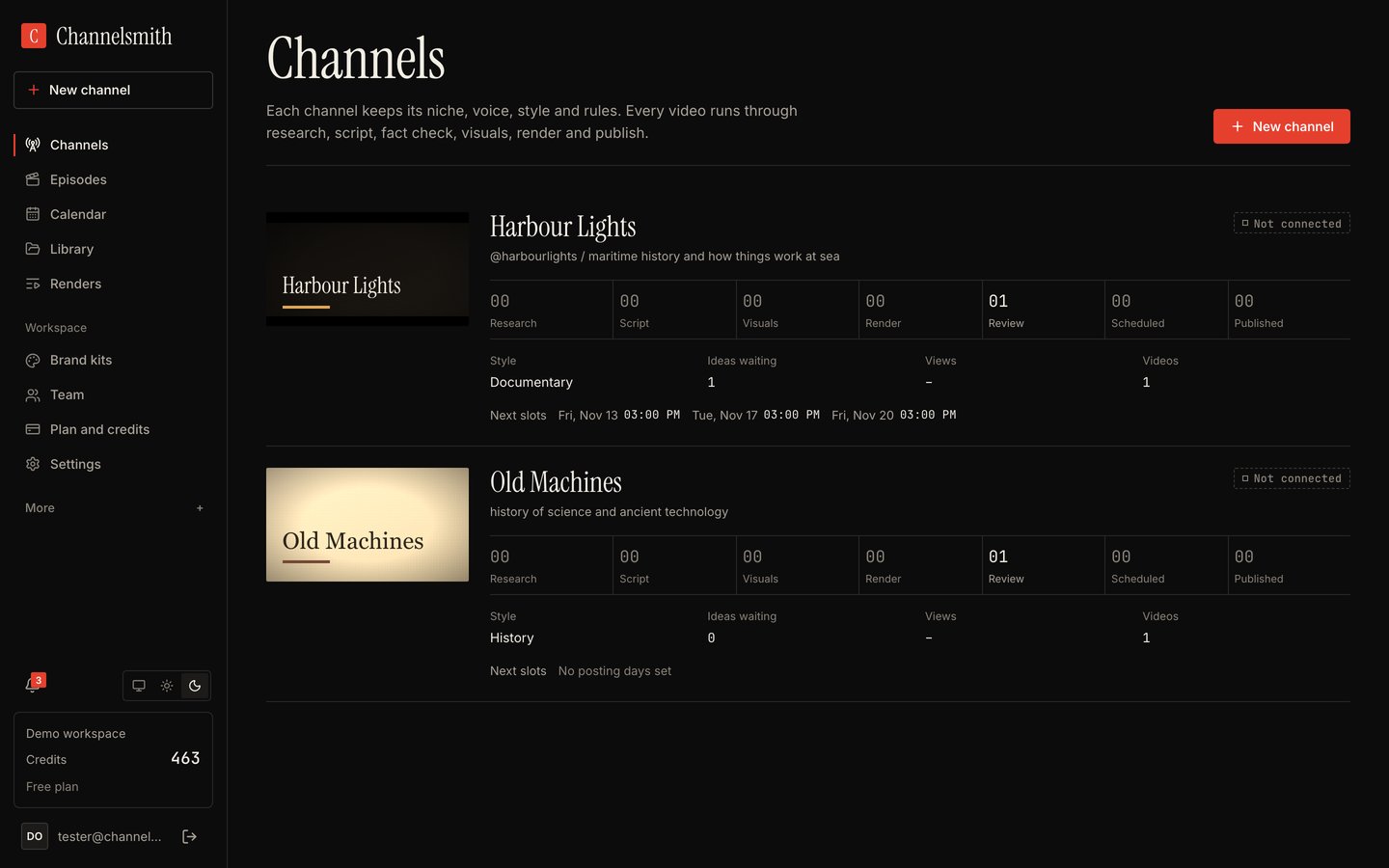
The Channels page then shows one card per channel with its pipeline at a glance: how many videos are in research, script, visuals, render, review, scheduled and published, the ideas waiting and the next posting slots.
A channel page has five tabs: Pipeline, Idea Lab, Calendar, Stats and Settings. Connect the channel's YouTube account in Settings before you publish.
03Find a topic in the Idea Lab
Open the channel's Idea Lab tab. Type a theme in "Steer the ideas" or leave it empty for the channel's niche, pick how many, and click Suggest ideas. Each idea comes with three title variants, the hook, the angle and why it should work for this audience. Add your own saves an idea you already have.
On an idea, Make this video starts an episode from it now; Approve for autopilot puts it in the queue the autopilot takes from; Archive hides it.
You can also skip the Idea Lab: Episodes, New episode, then the channel, what the video is about, the target length, links to start from and your notes.
04Research
The episode page has the nine steps across the top. Each one shows its state, and Run (or Run again) on the right starts it. Research collects facts from your links, your notes and, when the operator allows it, the web.
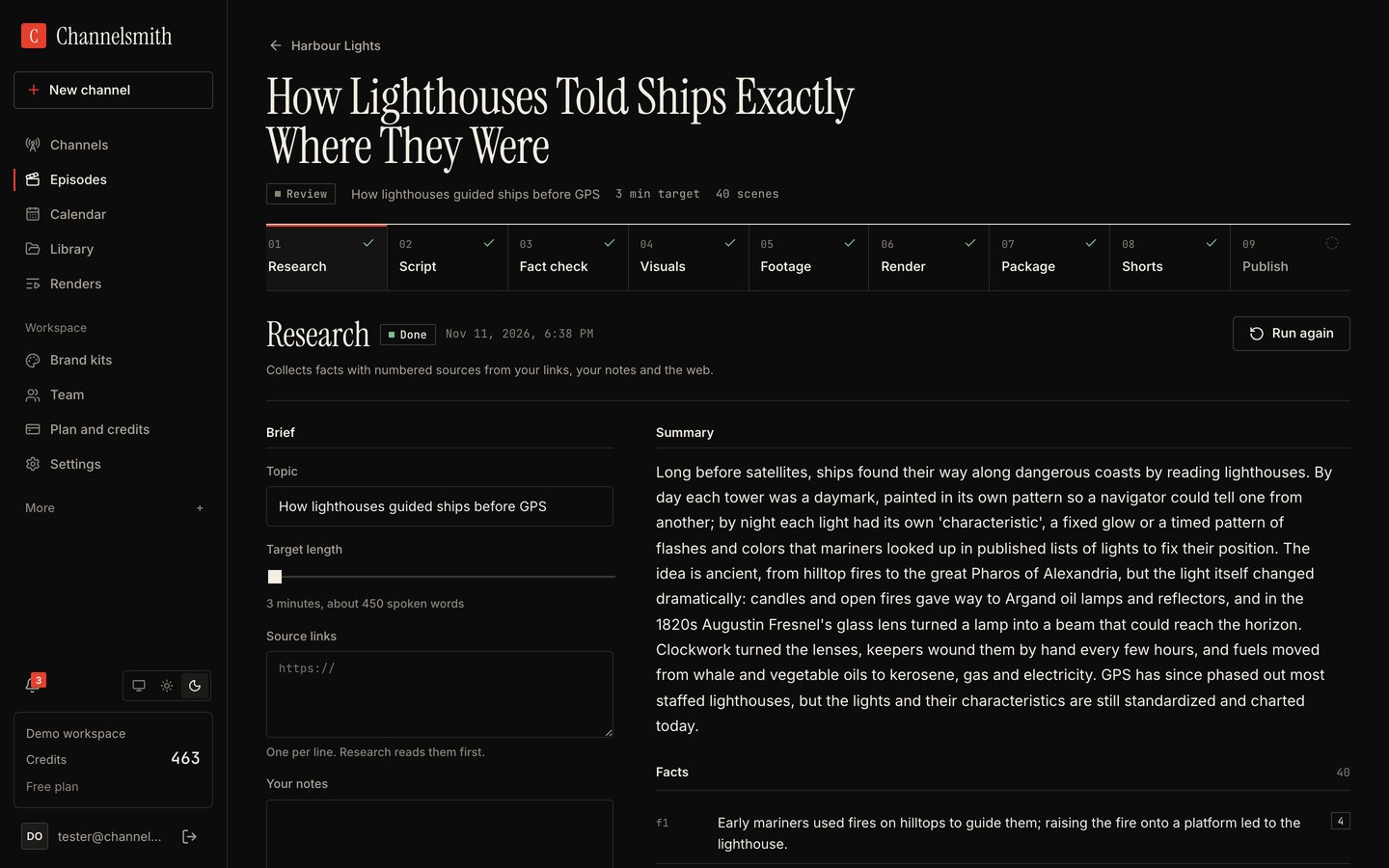
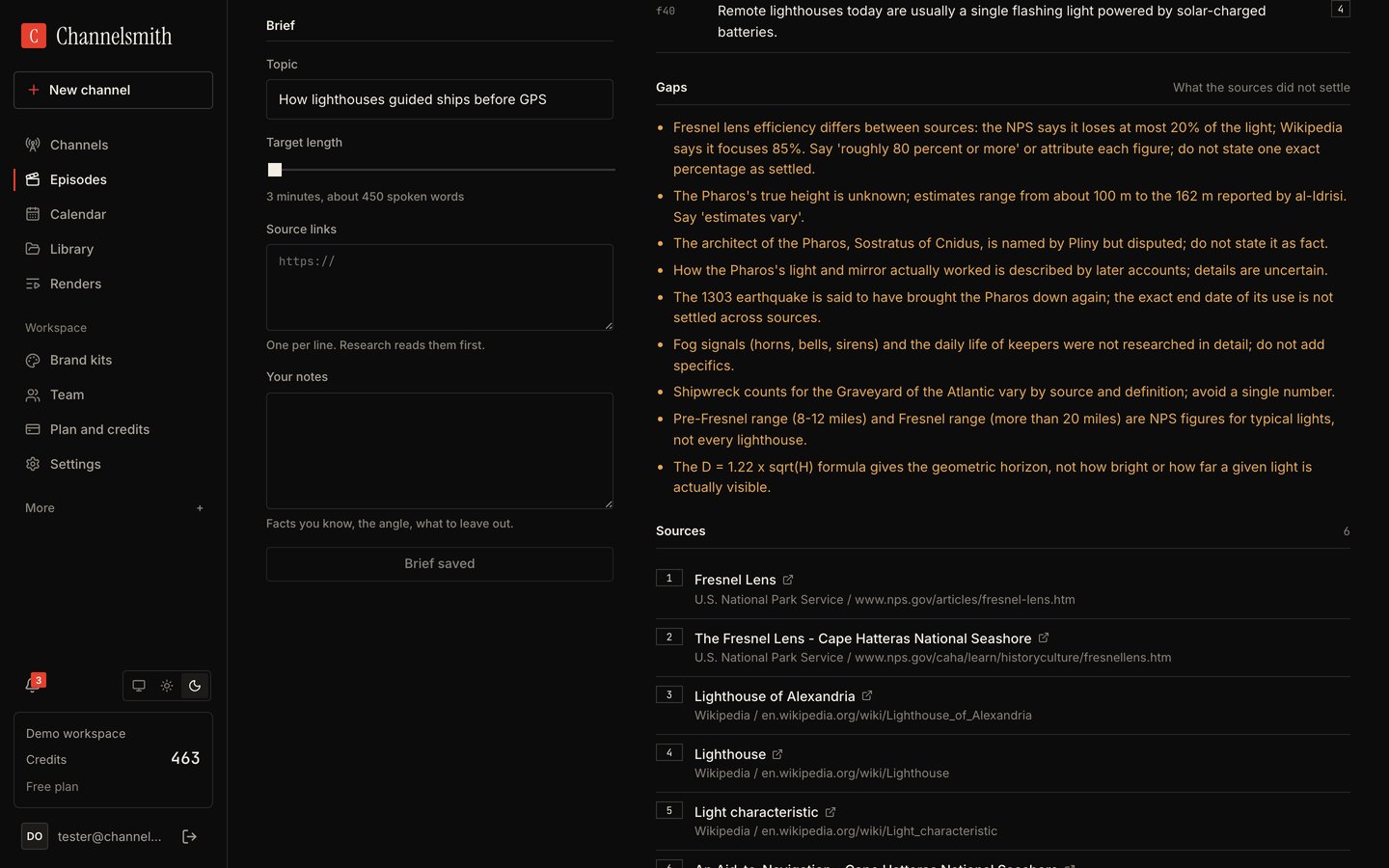
Every fact is tied to a numbered source the AI actually retrieved. Gaps lists what the sources did not settle, so the script does not state it as fact.
05Script
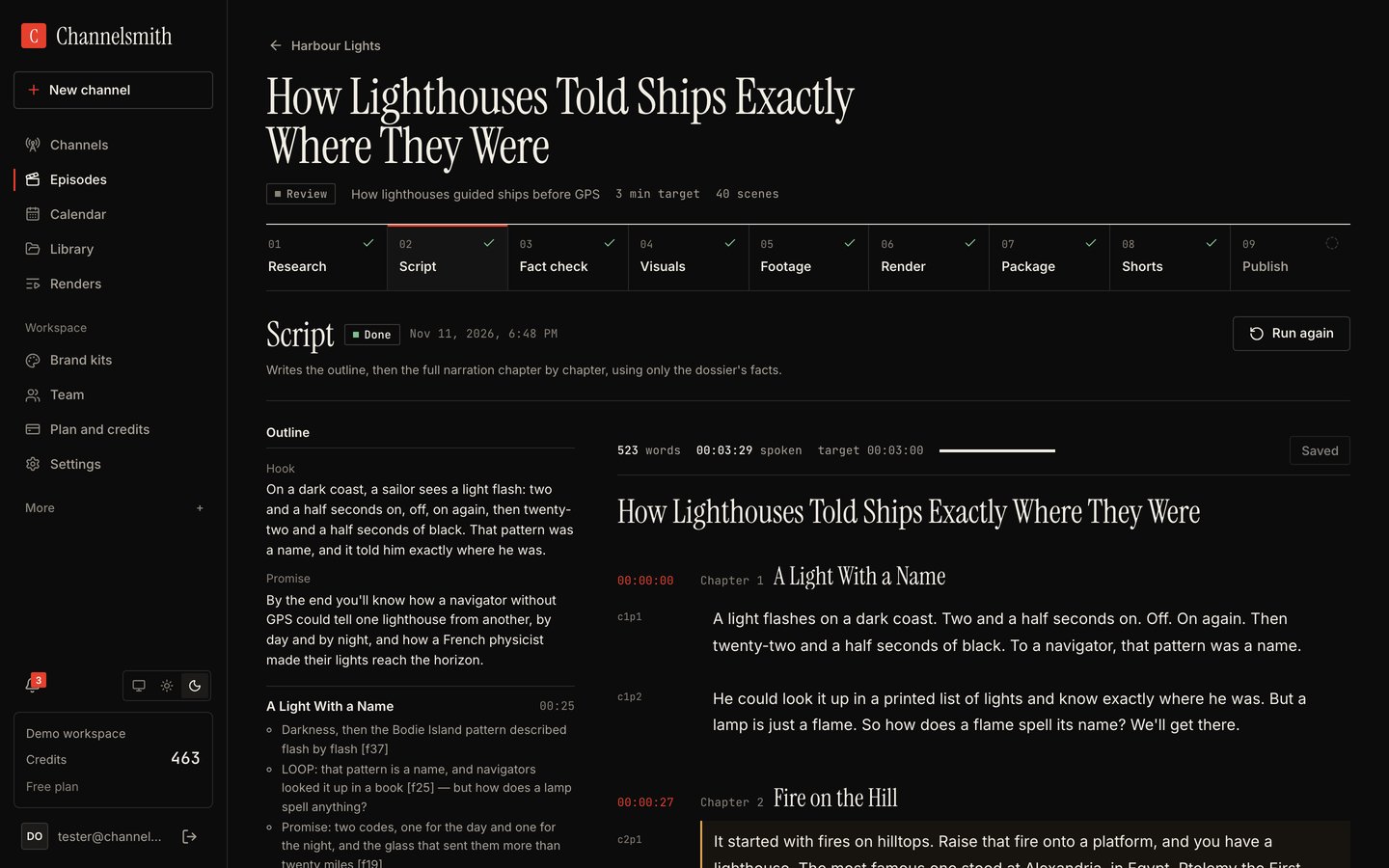
Script writes the outline (hook, promise, chapters) and then the narration chapter by chapter, using only the dossier's facts. Above the text: the word count, the spoken length and the target. Edit the text like a document; it saves as you go.
06Fact check
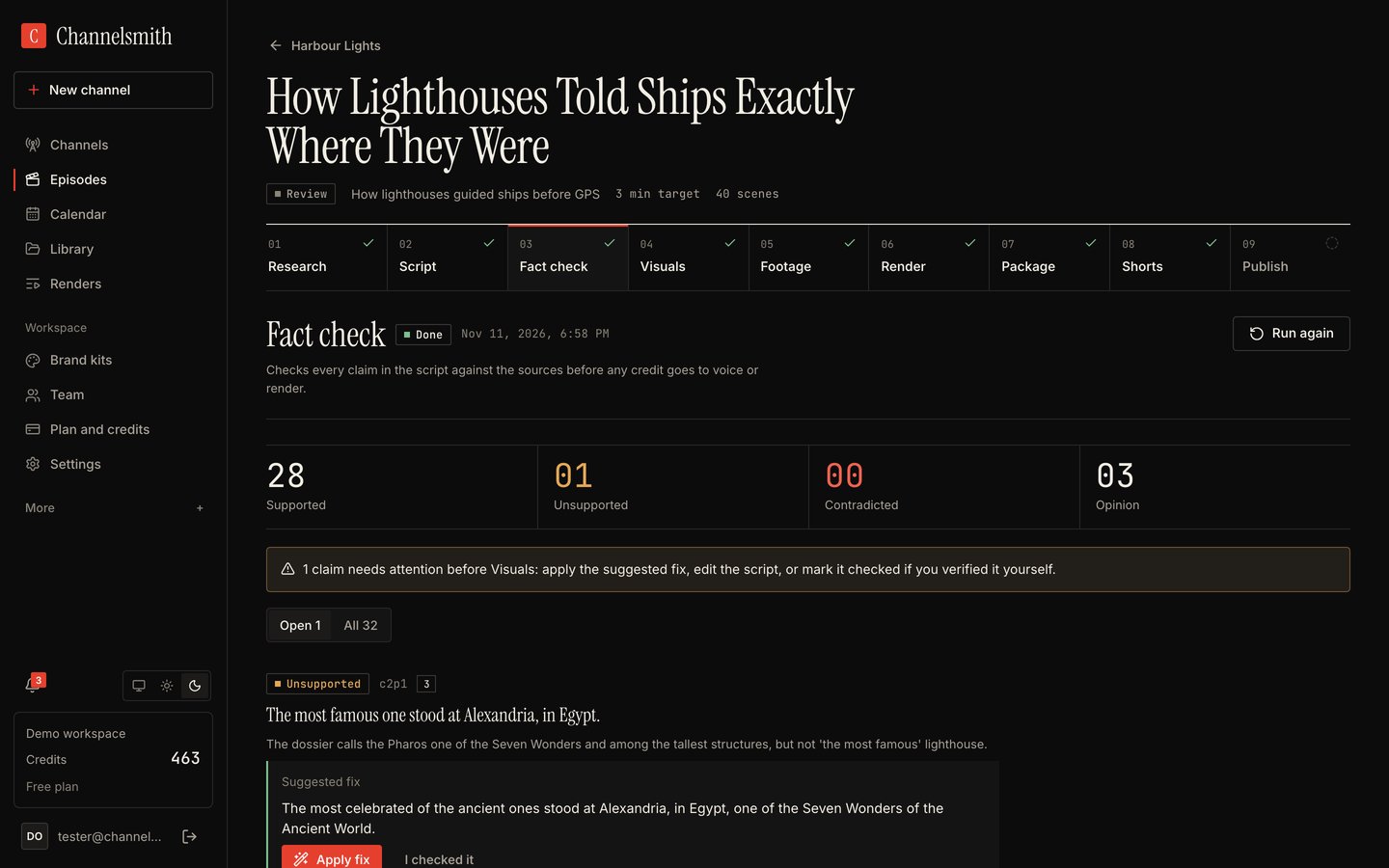
Fact check marks every claim as supported, unsupported, contradicted or opinion. Each open claim has three ways out: Apply fix writes the suggested sentence into the script, you edit the paragraph in Script yourself, or I checked it keeps it as is under your name. Visuals, Footage and Render stay locked until every open claim is settled.
07Visuals
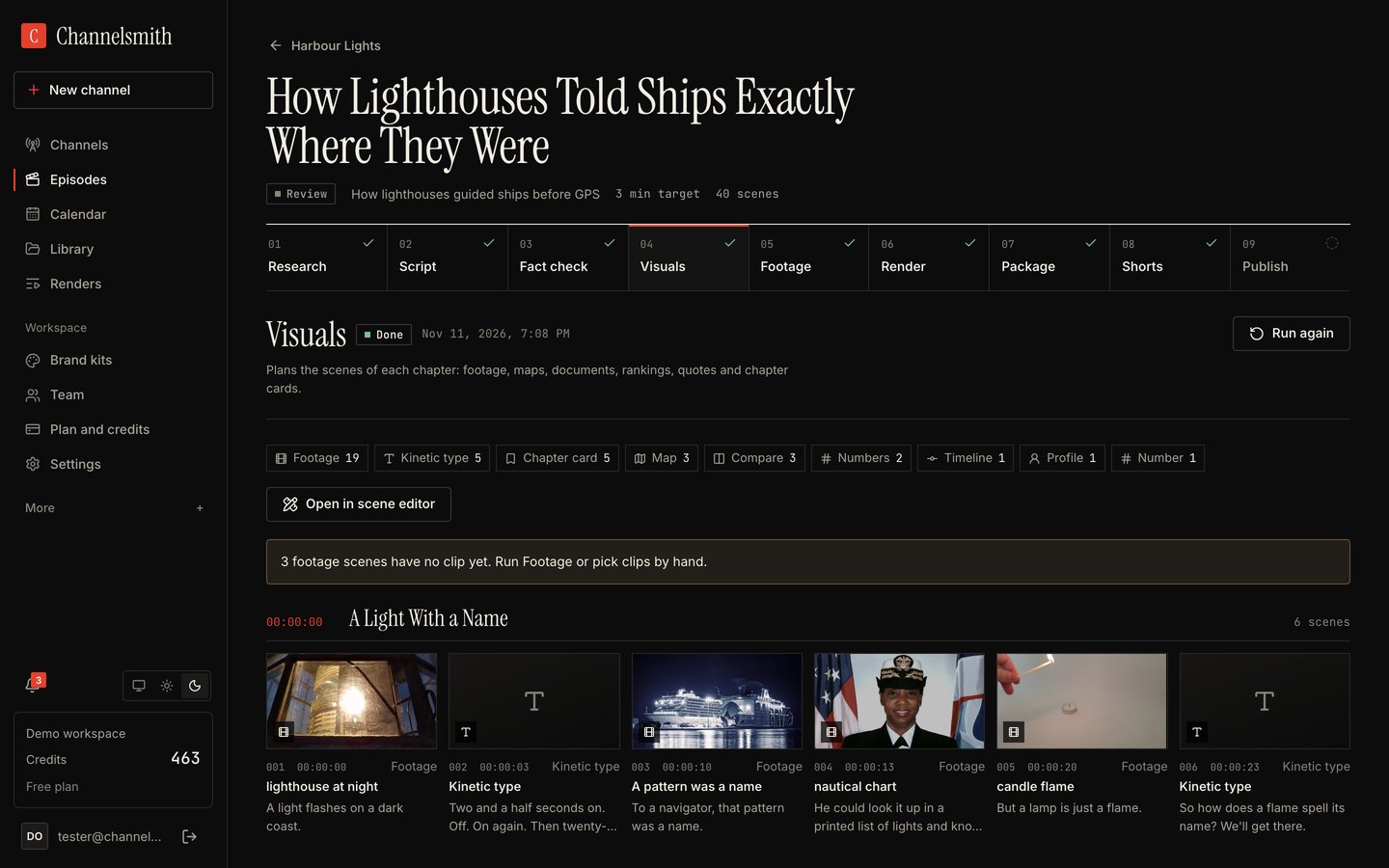
Visuals plans the scenes of every chapter: footage, kinetic type, maps, documents, rankings, comparisons, timelines, profiles and chapter cards. The bar at the top counts the scenes of each kind.
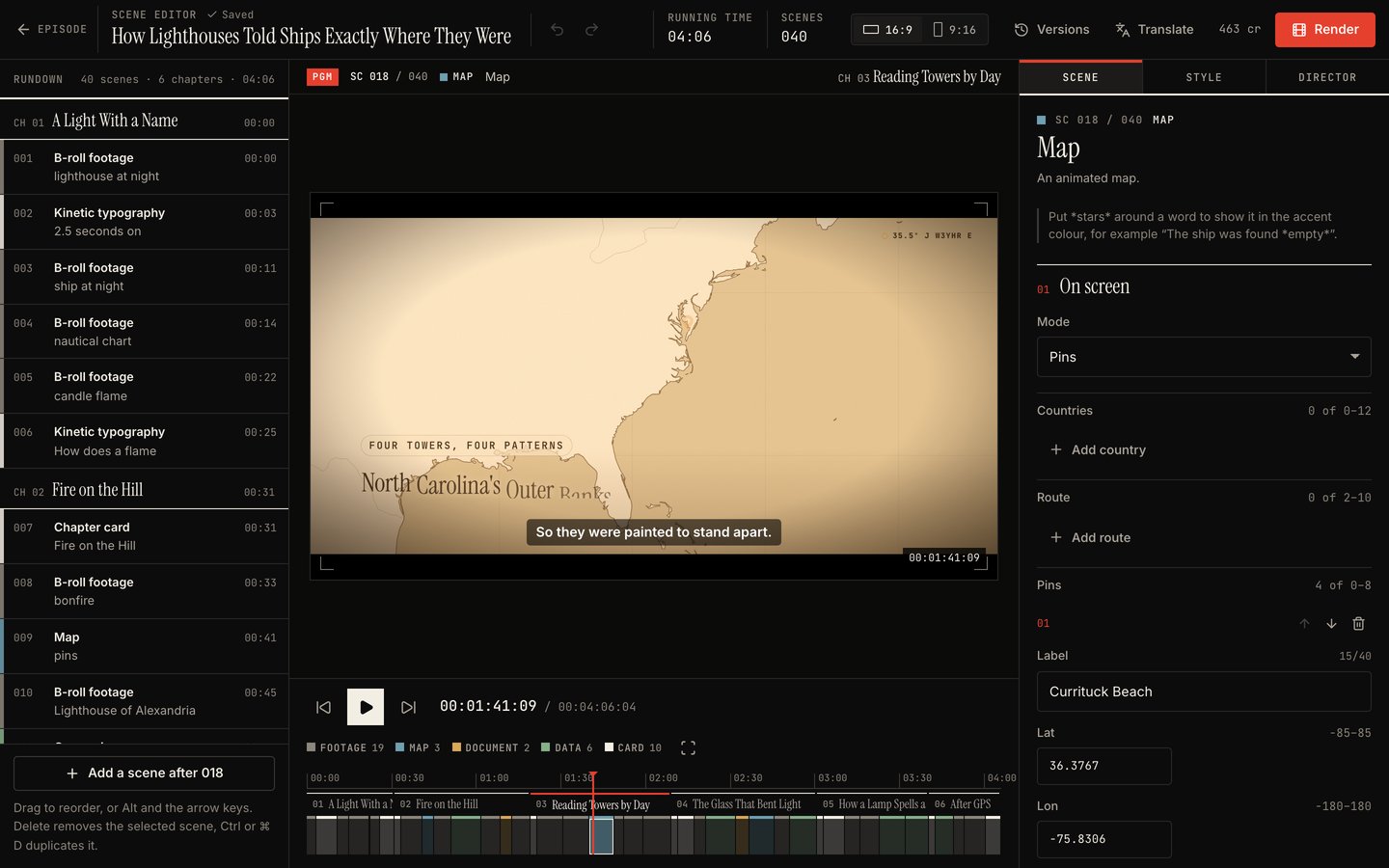
Open in scene editor shows the whole storyboard: the rundown by chapter on the left, the live preview in the middle, the timeline below it and a form for the selected scene on the right. Change any text, map pin or picture there, or ask for a change in the Director tab.
08Footage
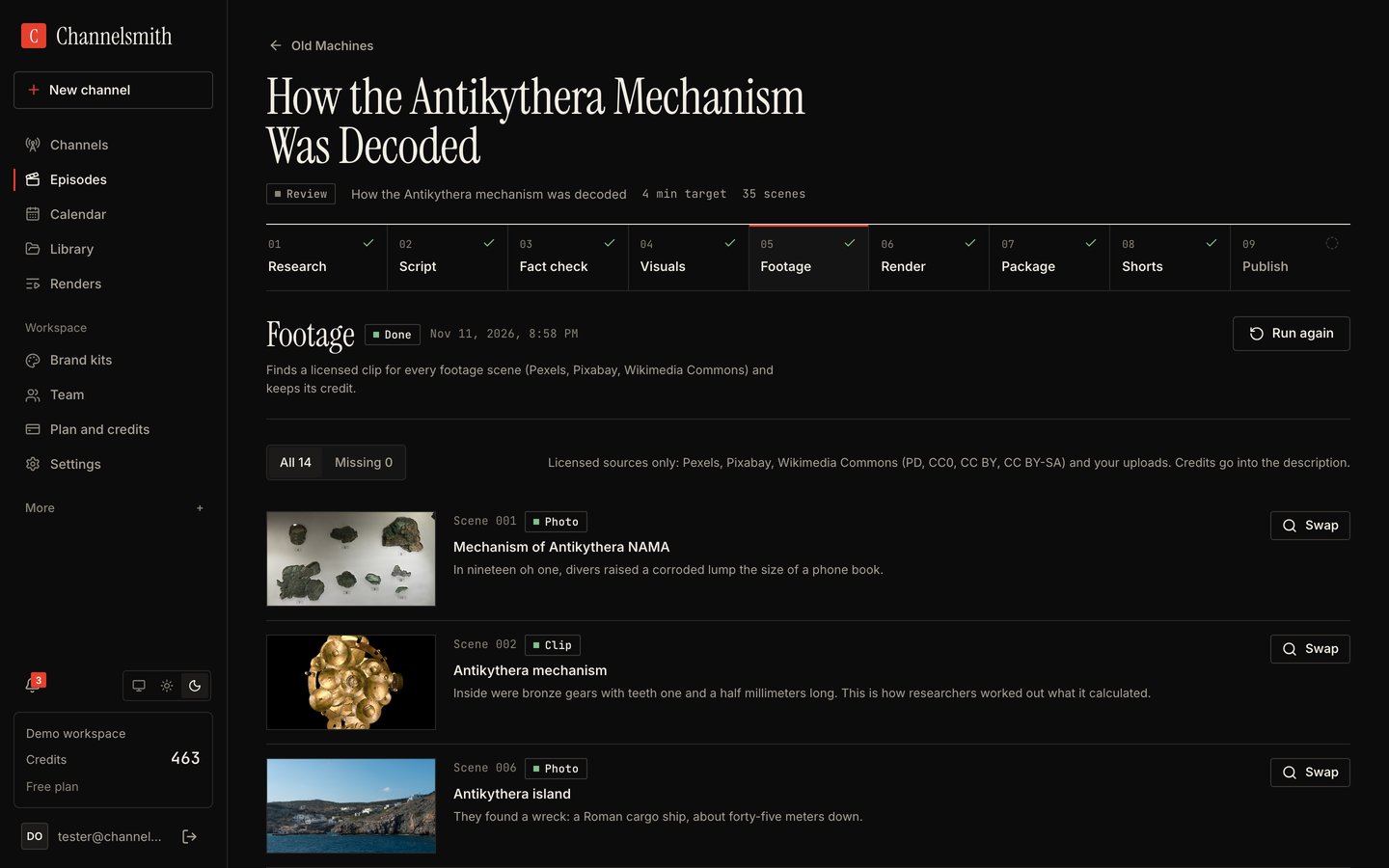
Footage finds a licensed clip or photo for every footage scene on Pexels, Pixabay and Wikimedia Commons, or uses your own uploads, and keeps each file's licence and credit. Swap shows the other candidates for a scene. Missing lists scenes without a clip; pick one by hand or leave the scene's text over the style's background.
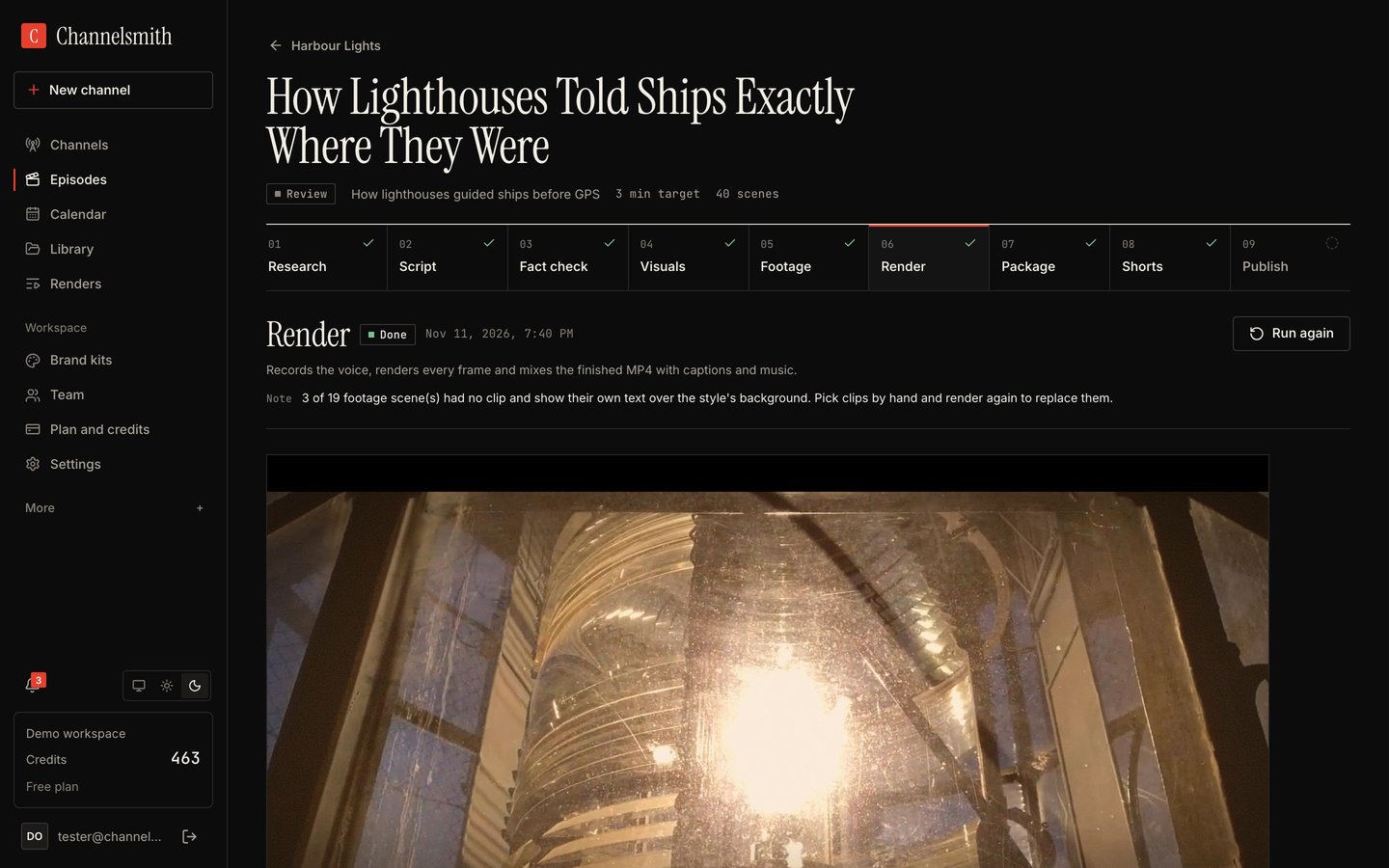
09Render
Render records the narration, renders every frame on your server and mixes the MP4 with captions and music. A note under the title tells you about anything to fix, for example footage scenes that had no clip. When it is done the video plays on the page.
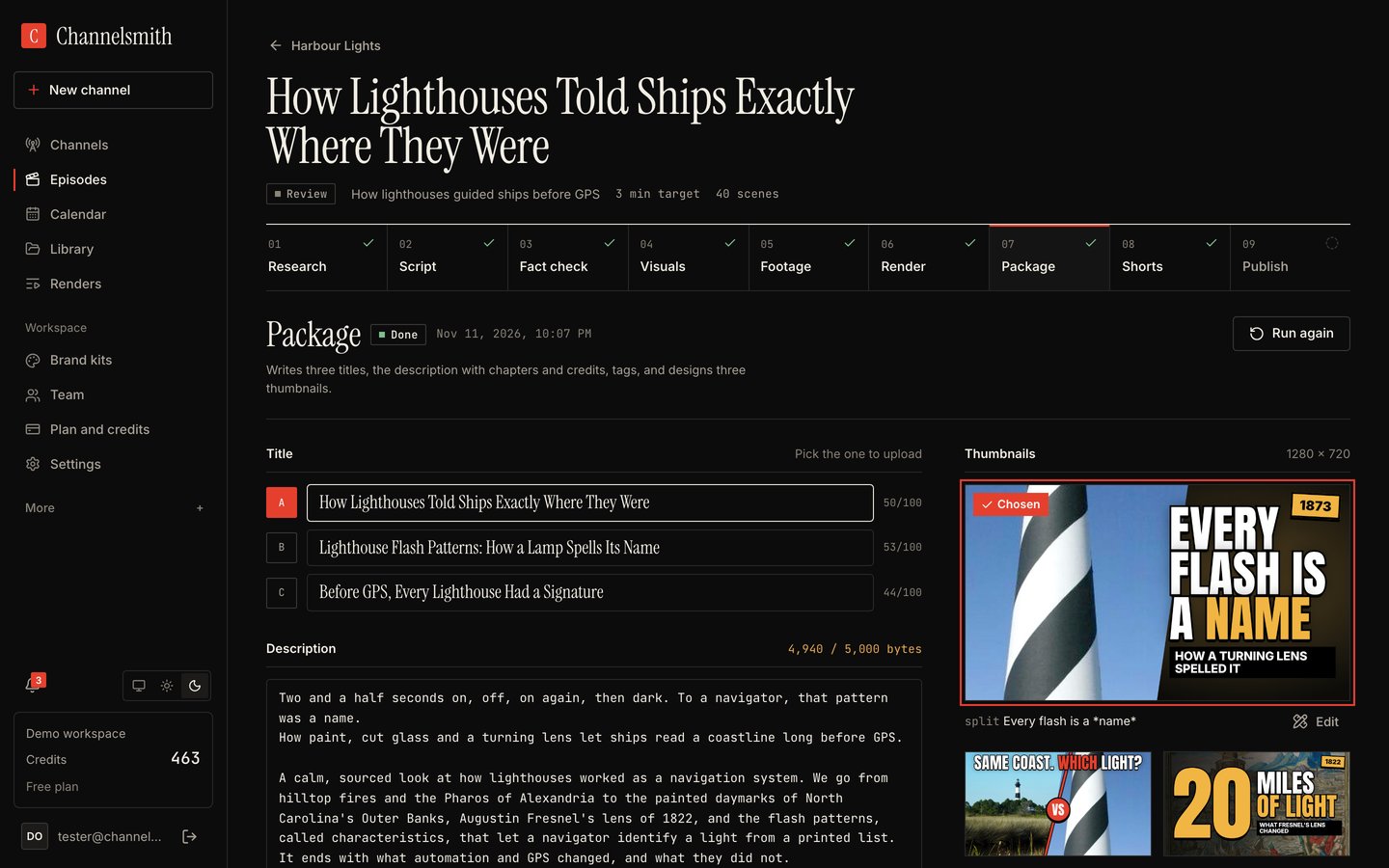
10Package
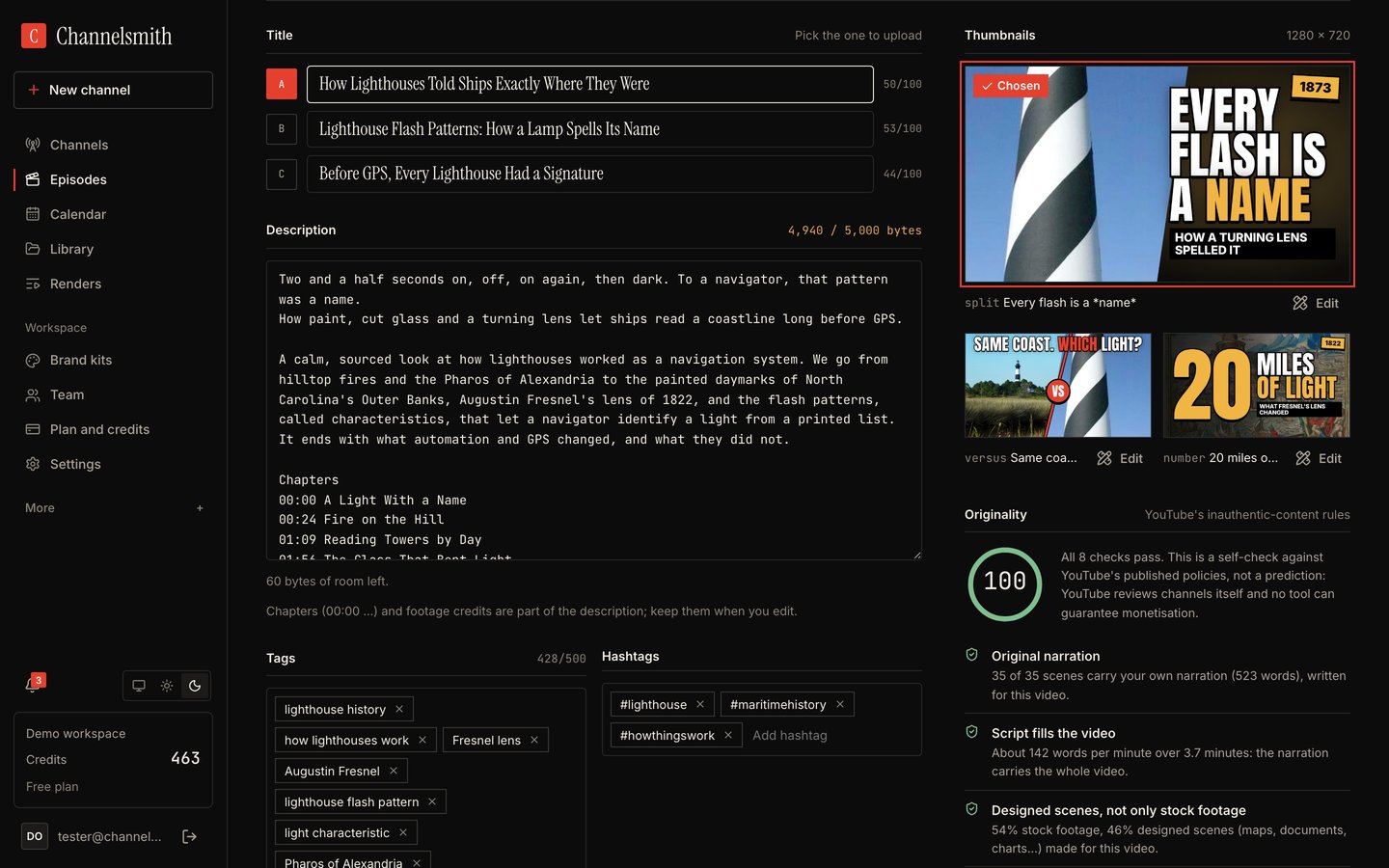
Package writes three titles (pick the one to upload), the description with chapters, sources and footage credits inside YouTube's 5,000-byte limit, tags and hashtags, and three thumbnail designs at 1280 × 720. Every part is editable.
Further down, the originality check compares the episode with YouTube's rules on inauthentic and repetitive content. It is a self-check, not a prediction of how YouTube will judge the channel.
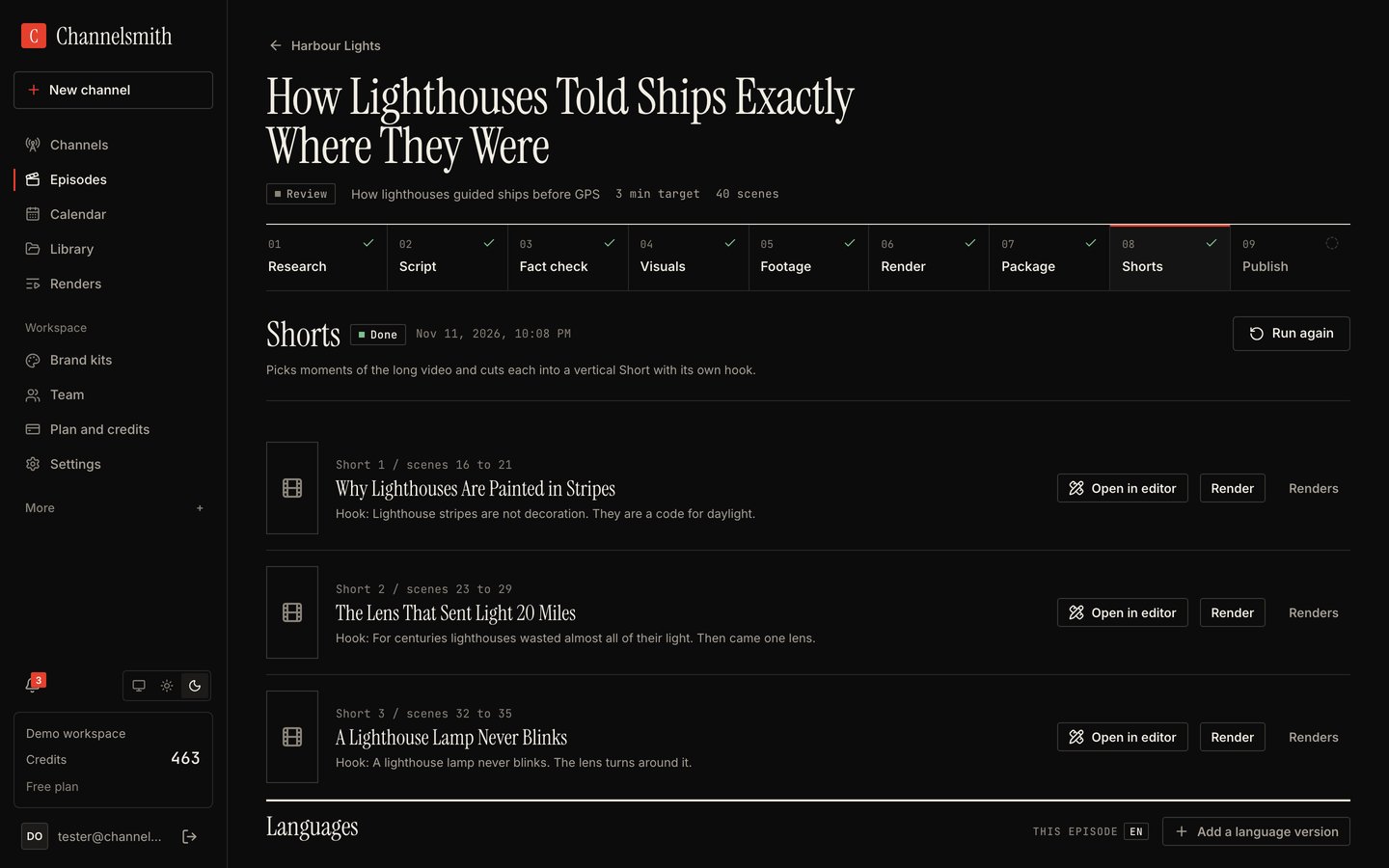
11Shorts
Shorts picks self-contained moments of the long video and turns each into a vertical 9:16 Short with its own hook. Open in editor changes a Short, Render renders it. Add a language version below remakes the whole episode in another language as its own episode.
12Publish
Publish uploads to YouTube once a person has watched the video. Choose what to upload (the long video or a Short), the privacy, a time or one of the channel's slots, and whether to upload the captions. Tick I watched the video and approve this upload. and click Upload to YouTube. Until Google audits your API project, YouTube keeps every upload private, whatever you choose here.
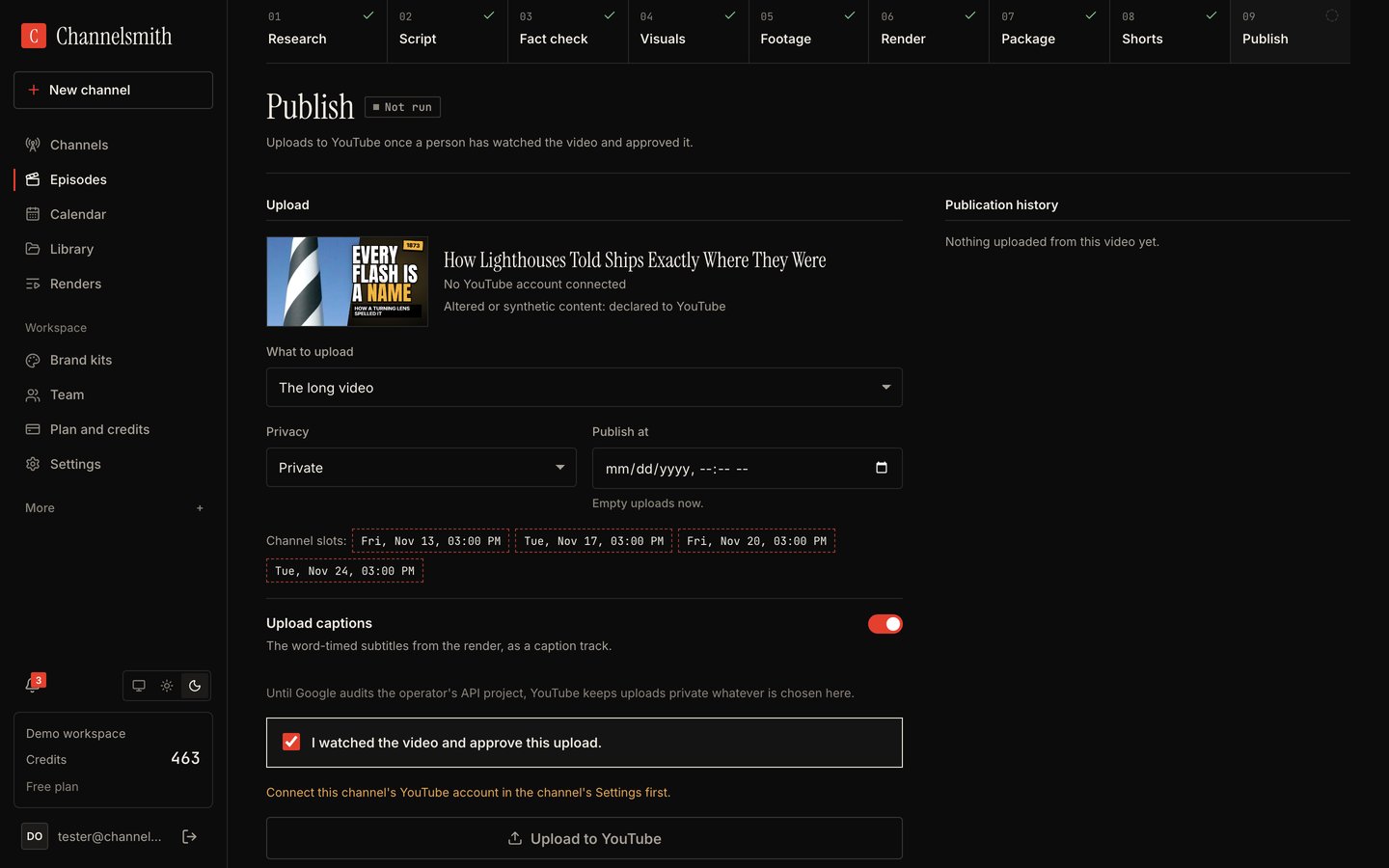
The upload, its link and its state then appear under Publication history. Nothing is ever published without this approval: not by the autopilot, the REST API or the MCP server.